Back to Blog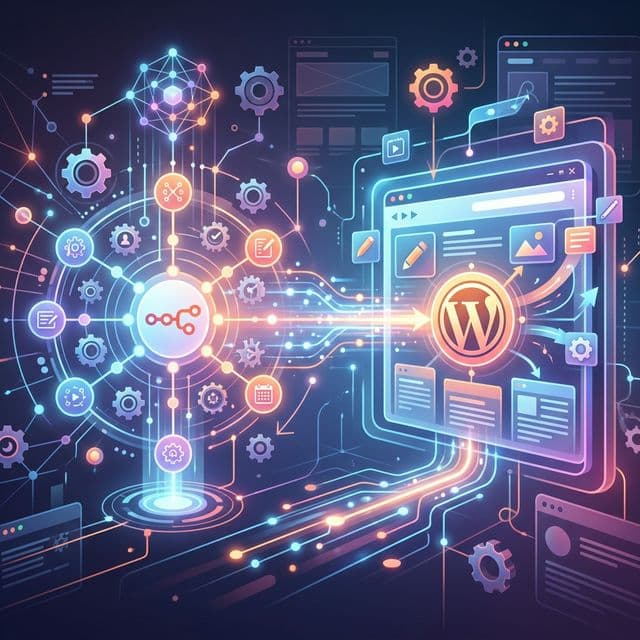
Automation
How to Connect N8n to WordPress?
Learn how to connect N8n to WordPress to automate posts, manage content, and trigger workflows using APIs and webhooks. Guide for seamless integration.
March 20, 2026
6 min read

For many content creators and business owners, WordPress is the heart of their digital presence. However, managing a WordPress site can quickly become a manual treadmill of copying, pasting, uploading, and formatting. The manual way of managing content doesn't scale, especially if you're trying to maintain multiple sites or a high-frequency posting schedule.
Connecting n8n to WordPress transforms your website from a static CMS into an active participant in your business workflows. By leveraging the WordPress REST API, n8n can programmatically create posts, upload media, update users, and sync WooCommerce products. This guide provides a comprehensive roadmap for bridging these two powerful tools to build a truly autonomous content machine.
Prerequisites: Preparing Your WordPress Site
Before you can start sending data from n8n to your site, you need to ensure your WordPress environment is configured to talk to external services. WordPress is secure by default, which means several doors need to be opened (safely) for automation to work.
HTTPS Requirement
Security is non-negotiable when dealing with API credentials. n8n will often refuse to connect to a site that isn't secured with an SSL certificate (HTTPS). This ensures that the sensitive Application Passwords you use to authenticate the connection aren't intercepted in transit. Most modern hosts provide free Let’s Encrypt SSL certificates; ensure yours is active before proceeding.
REST API Check
The connection between n8n and WordPress happens through the REST API. Occasionally, aggressive security plugins like Wordfence or certain hosting configurations might block REST API access to prevent bot attacks. You can verify your API status by navigating to yourwebsite.com/wp-json. If you see a wall of JSON code, you're good to go. If you see a 403 Forbidden or Access Denied error, you’ll need to whitelist your n8n IP address or adjust your security settings.
The "Application Passwords" Feature
Gone are the days of needing complex OAuth plugins to connect external apps. Since version 5.6, WordPress has built-in Application Passwords. This feature allows you to create a unique password for n8n that is separate from your main admin password. If you ever want to stop n8n's access, you can simply revoke that specific application password without changing your own login.
Steps to Connect n8n to WordPress
Connecting the two platforms is a straightforward process that involves generating a key on one end and plugging it into the other.
Step 1: Generate Credentials in WordPress
- Log into your WordPress Admin dashboard.
- Navigate to Users > Profile.
- Scroll down to the Application Passwords section.
- Give your new credential a name (e.g., "n8n Automation") and click Add New Application Password.
- Copy the password immediately. WordPress will only show this to you once.
Step 2: Configure WordPress Node in n8n
- Open your n8n canvas and add a WordPress Node.
- Click on the Credentials dropdown and select "Create New Credentials."
- Enter your WordPress URL (e.g., https://yourwebsite.com).
- Enter your Username (your actual WP admin username).
- Paste the Application Password you just generated into the "Password" field.
Step 3: Test the Connection
To ensure the bridge is solid, select the Post Resource and the Get All Operation in the n8n node. Hit Execute Node. If the connection is successful, n8n will pull a list of your most recent blog posts. If it fails, double-check that your site isn't behind a maintenance mode plugin or a firewall that blocks external requests.
Need a Custom Automation Strategy?
Book a strategic consultation with Flowlyn to streamline your WordPress workflows.
Book Free CallTop 5 n8n WordPress Automation Ideas
Once the connection is live, the possibilities for automation are endless. Here are five high-impact ways to use this integration.
1. AI-Powered Content Engine
This is the most popular use case for n8n. You can set up a workflow that monitors a Google Sheet for new rows. When you add a title and a keyword, n8n sends that data to OpenAI (GPT-4o) to generate a full, SEO-optimized blog post. Finally, the WordPress node takes that output and creates a Draft post, complete with tags and categories.
2. Social Media to WordPress
Repurposing content is a massive time-saver. You can build a workflow that triggers whenever you post a high-performing update on LinkedIn or X (Twitter). n8n can take that text, use an AI agent to expand it slightly, and post it to your WordPress site as a Microblog or a News update. This keeps your site active with zero extra writing effort.
3. Dynamic Product Updates
If you run a WooCommerce store, keeping inventory in sync is a chore. You can use n8n to watch a master Airtable or a supplier’s API. Whenever a price change or stock update occurs in the external source, n8n instantly updates the corresponding product on your WordPress site, ensuring your customers never see outdated information.
4. Automated Image Optimization
Heavy images are the #1 cause of slow WordPress sites. You can build a workflow where n8n fetches images from a folder, sends them to a service like TinyPNG or Cloudinary for compression, and then uploads the optimized versions directly to the WordPress Media Library. n8n can even return the Media ID to be used in a blog post automatically.
5. User Onboarding
If you offer a membership or a course, manual user creation is a bottleneck. Using n8n, you can trigger a Create User action in WordPress the moment someone submits a payment via Stripe or signs up through Typeform. This provides an instant, professional experience for your new members.
Mastering these n8n workflow automation fundamentals is the key to expanding these ideas. Once you understand how to pass data from a trigger to the WordPress node, you can start layering in more complex logic, like conditional formatting or multi-step approval gates.
Turn your WordPress Site into a Self-running Machine
Integrating n8n with WordPress is about more than just saving time; it's about increasing the output and consistency of your digital brand. When your site can update itself, optimize its own images, and draft its own content, you are free to focus on the high-level strategy that actually moves the needle for your business.
Building a complex automation ecosystem can be daunting, especially when dealing with API limits and data mapping. If you're ready to take your site to the next level but want a professional, done-for-you setup that is hardened for security and performance, our team at Flowlyn is ready to help. Explore our custom n8n workflow services and let’s turn your WordPress site into a fully autonomous revenue engine.
Ready to Automate WordPress?
Book a strategic consultation with Flowlyn and let us automate your site today.
Book Free Call
About Divyesh Savaliya
Divyesh leads Flowlyn with 12+ years of experience designing AI-driven automation systems for global teams.
In This Article