Back to Blog
Automation
How to Build a Custom Automated Workflow: Step-by-Step
Learn how to build custom automated workflows to eliminate manual tasks. Follow our direct guide to mapping data, testing scenarios, & scaling efficiency.
December 29, 2025
6 min read

Efficiency is the engine of growth.
For modern businesses, the difference between scaling rapidly and hitting a plateau often comes down to how much time is "leaked" through manual data entry. Building an automated workflow allows you to reclaim those hours, ensuring your software ecosystem works for you rather than against you.
Whether you are connecting your CRM to your marketing tools or syncing sales data with accounting, the logic remains the same. Here is a direct, step-by-step guide on how to build a custom automated workflow that sticks.
Steps to Build a Custom Automated Workflow
Here are the six steps to build a custom automated workflow.
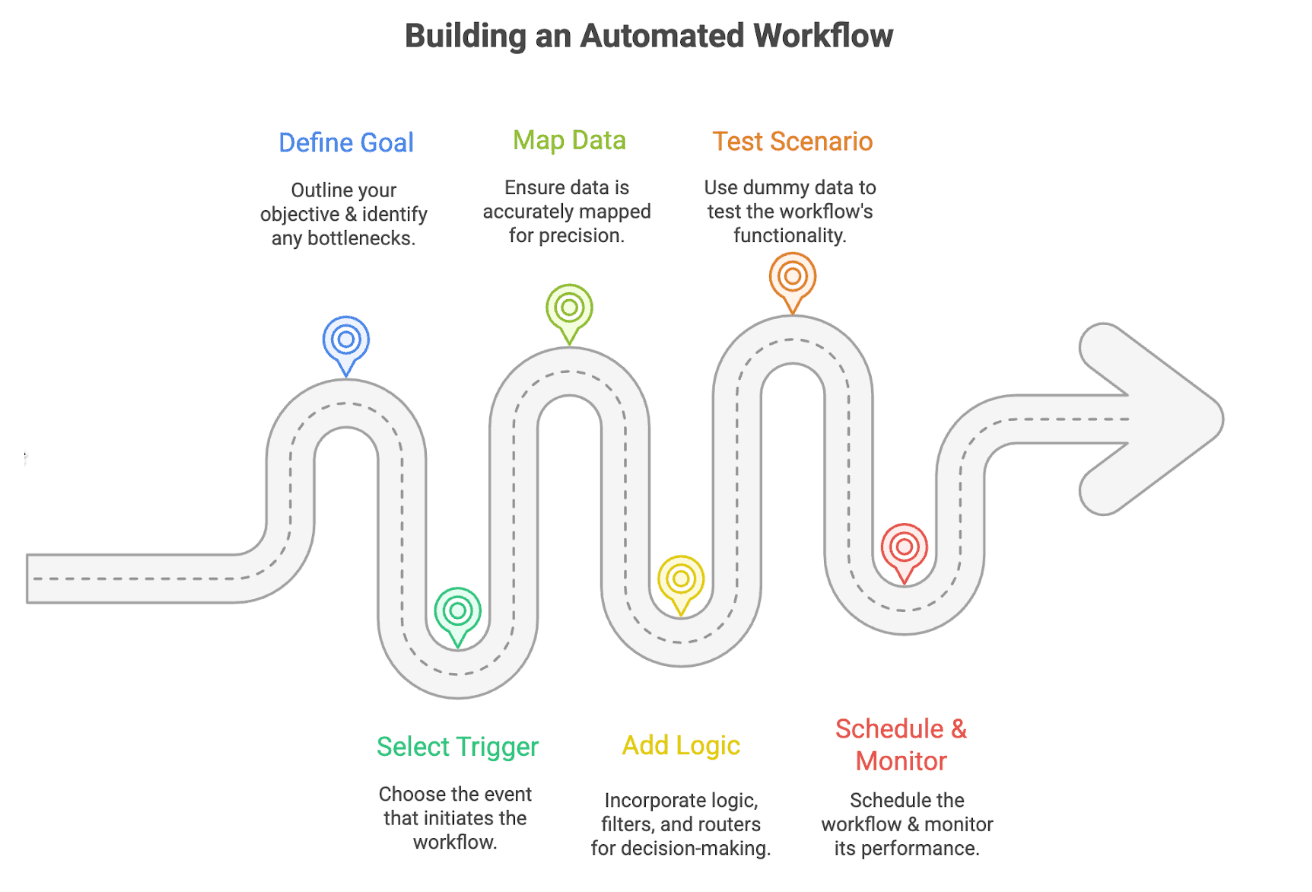
Step 1: Define the Goal and Identify the Bottleneck
The first step in any automation project is to define your goal by identifying a repetitive manual task that consumes your valuable time, such as migrating Shopify orders into accounting software or manually moving leads from a Facebook ad into a spreadsheet.This level of customization is what separates basic tools from high-performance systems.Our automation strategy consulting ensures your systems are built for scale.
You cannot automate a process you don't fully understand. Ask yourself:
- Which task do I perform at least three times a week?
- Which process is prone to human error?
- Where does data "get stuck" between two different apps?
Once you have identified the bottleneck, you have your starting point for effective process optimization.
Step 2: Select Your Trigger
Every workflow needs a "spark."
In automation terminology, this is your Trigger. You must select the app where the process begins. For a lead generation workflow, the trigger might be a new submission on a Typeform. For an e-commerce workflow, it might be a "New Successful Payment" in Stripe.
Choosing the right trigger is crucial because it determines the type of data that will be available to you for the rest of the workflow.
Step 3: Map Your Data for Precision
Once the objective is clear and the trigger is set, you use a drag-and-drop interface like the one found in Make automation to map your data. This is where you precisely direct which information populates specific fields in your destination app.
For example, you would instruct the system to "Take the 'Customer Name' from Shopify and put it in the 'Client' field in QuickBooks." Data mapping ensures that the right information reaches the right place without a human having to copy and paste it.
Step 4: Add Logic, Filters, and Routers
Custom workflows often require more than a simple point-A-to-point-B connection. You may need to add Filters to ensure only specific data moves forward.
By using routers, you can split one workflow into multiple paths. One path could send an email to the customer, while another path alerts your team on Slack. This level of customization is what separates basic tools from high-performance systems like those we build at Flowlyn.
Step 5: Test the Scenario with Dummy Data
Before fully launching your workflow into a live environment, it is essential to test the scenario with "dummy" or sample data to ensure total accuracy. Testing allows you to catch errors—such as a missing field or a formatting glitch—before they affect real customers or corrupt your database.
A successful test confirms that the logic is sound and the data mapping is executing exactly as intended.
Step 6: Schedule, Activate, and Monitor
Finally, you can schedule and activate the workflow, allowing it to run autonomously in the background 24/7. Most automation platforms allow you to choose between "Instant" (runs the second the trigger happens) or "Scheduled" (runs every hour or at a specific time of day).
Once active, your workflow becomes a "digital employee" that never sleeps, never gets tired, and never makes a typo. If your store is on Shopify, once successfully connected to the API, you can proceed to set up comprehensive Shopify workflow automation for intelligent inventory tracking, customer alerts, and more.
Why Custom Workflows Matter for Your Business
Standard, "out-of-the-box" integrations are often limited. They might move a name and an email, but they rarely handle complex business logic. Custom workflows built through Flowlyn's services allow you to:
- Maintain Data Integrity: No more duplicate records or missing phone numbers.
- Speed Up Response Times: Leads are contacted seconds after they express interest.
- Scale Without Hiring: Handle 1,000 tasks as easily as 10.
Building your first automation can feel daunting, but you don't have to do it alone.
At Flowlyn, we specialize in taking complex manual processes and turning them into streamlined, automated engines. From auditing your current tech stack to deploying complex Make scenarios, we help you bridge the gap between manual labor and digital efficiency.
Explore how we can help you build your custom automation with our AI-based services.

About Divyesh Savaliya
Divyesh leads Flowlyn with 12+ years of experience designing AI-driven automation systems for global teams.
In This Article